Cloud Sync & Local Backup
Bulletproof your routines. Seamlessly sync settings to Google Drive or export locally to protect your data.
Overview
Your complex alarm schedules, tailored challenges, and custom audio profiles represent a serious time investment. ReAlarm employs a robust, dual-layered Backup methodology to ensure your hard work is never lost—even if you lose your device, perform a factory reset, or upgrade to a new phone.
You can choose the completely automated "Google Account Sync" for frictionless cloud protection, or rely entirely on "Local Backup" to export and store your precise configuration files manually without any internet connectivity.
Capabilities
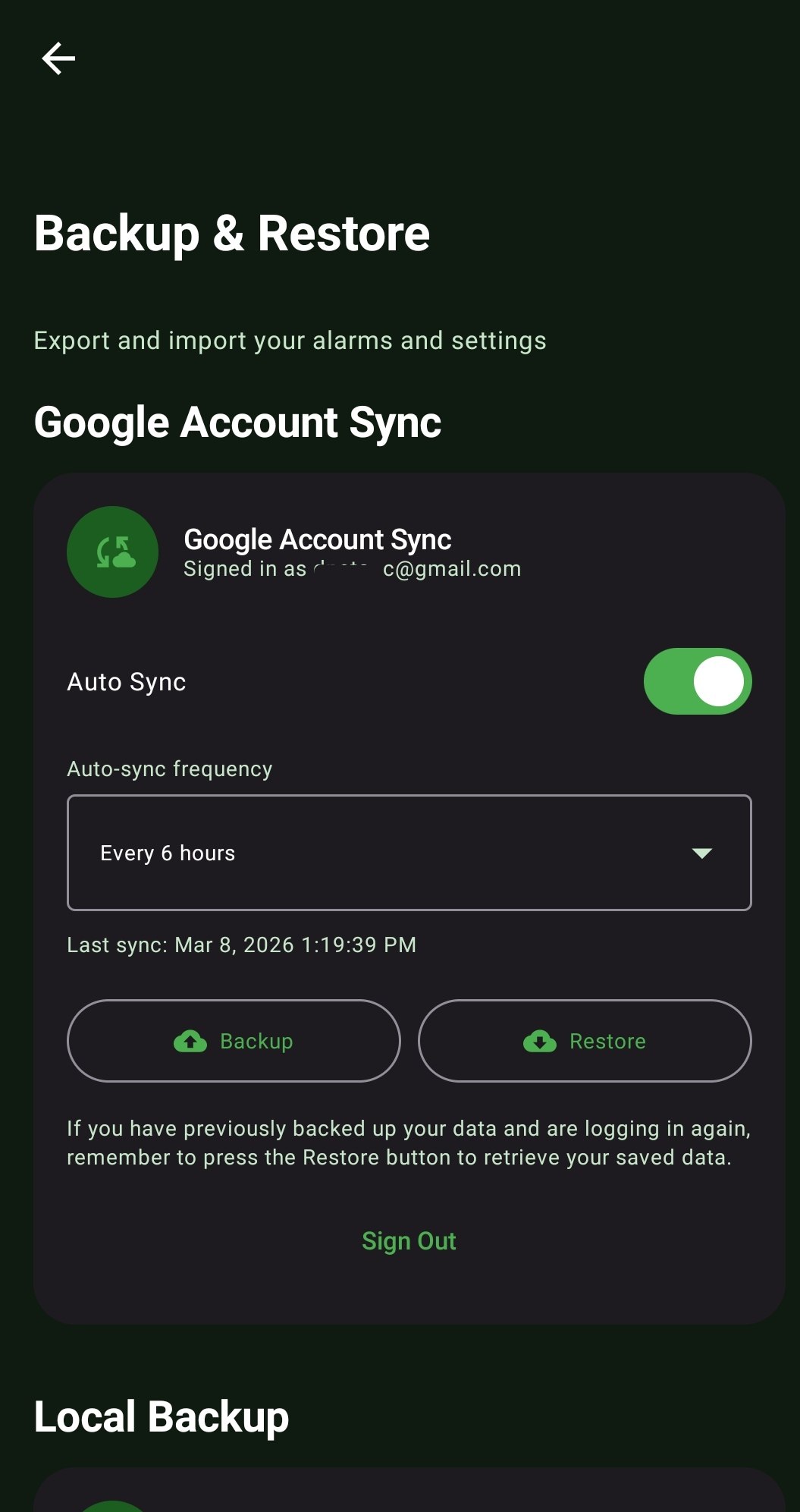
- Automated Google Drive Sync: Securely link your Google Account and let ReAlarm handle the rest. The app silently backups your entire profile to your personal Drive space.
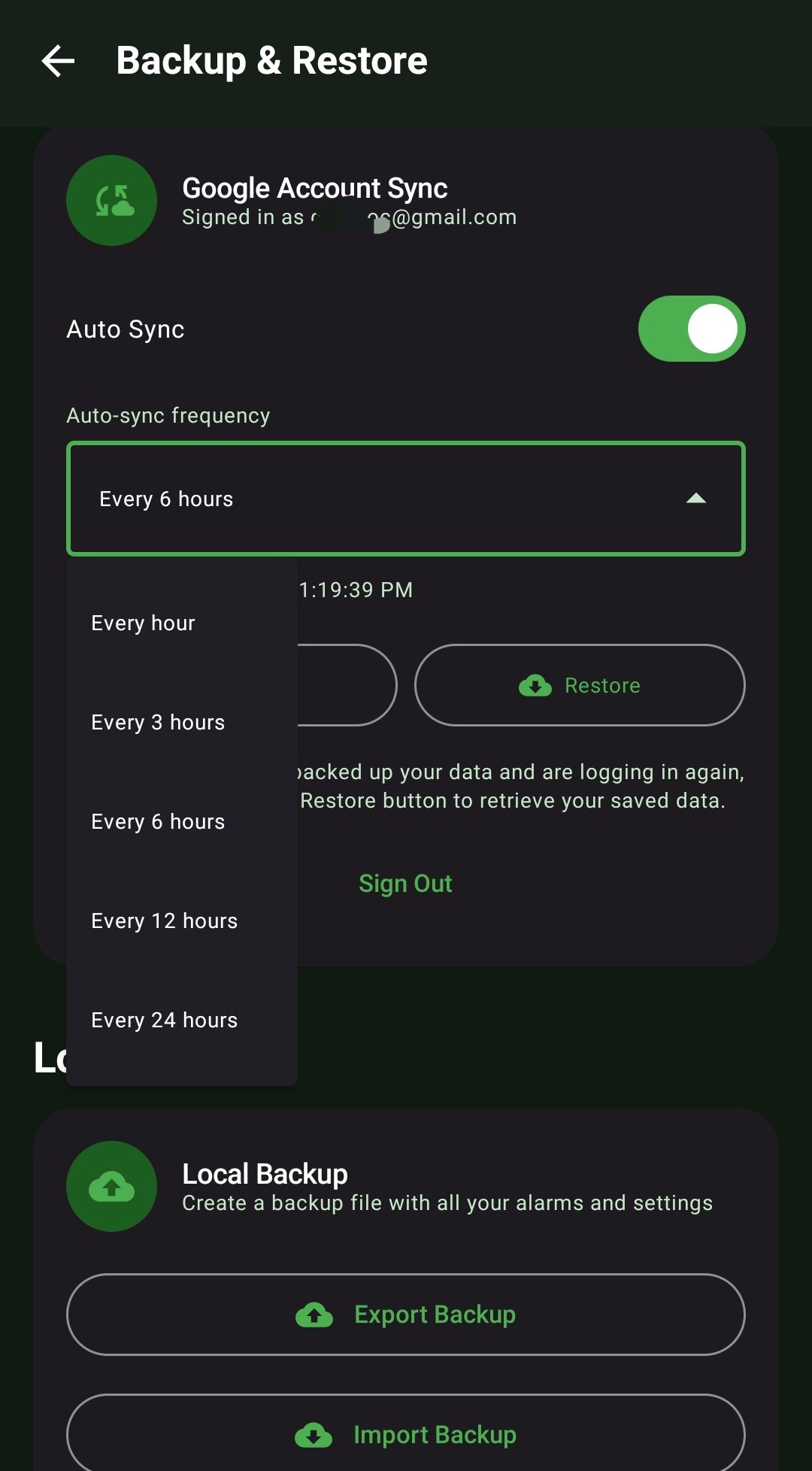
- Custom Auto-Sync Frequencies: You dictate the schedule. Choose to automatically push your latest settings to the cloud Every Hour, Every 6 Hours, Every 12 Hours, or Daily for absolute peace of mind.
- Offline Local Export: For the privacy-conscious, generate a highly compressed `.bak` configuration file saved directly to your device's internal storage. Transfer this file via USB, email, or your own private NAS.
- 1-Click Restoration: Moving to a new phone? Simply sign in to Google or locate your `.bak` file, hit 'Restore', and instantly watch your entire complex alarm board rebuild itself exactly as you left it.
How to Setup
- Navigate to the ReAlarm global Settings menu and select 'Backup & Restore'.
- For Cloud Sync: Tap 'Sign In' and authorize your Google Account. Toggle 'Auto Sync' on and select your preferred frequency from the dropdown.
- For Local Backup: Scroll down to the Local section and tap 'Export Backup'. Follow the Android file picker to save the file securely on your device.
Use Cases
The Phone Upgrader: You just bought the newest Android flagship. Instead of spending 45 minutes manually recreating your intricate work-shift alarms and barcode challenges, you simply tap 'Restore from Google Drive' and everything is perfectly mapped in seconds.
The Privacy Advocate: You prefer not to connect third-party apps to your primary Google account. You generate a Local Export file, physically transfer it to your encrypted desktop, and rest easy knowing your data is secure and completely offline.
Screenshots
Frequently Asked Questions
Does Google Sync backup my Custom Images as well?
Can I have multiple devices synced to the same backup?
Where does the Local Backup file actually save?
If I delete ReAlarm, is my Google Backup deleted too?
Ready to Upgrade Your Morning?
Install ReAlarm today to unlock Cloud Sync & Local Backup for free.
Get it on Google Play